

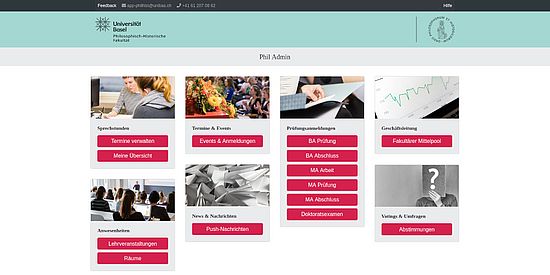
Phil Admin
Phil Admin is a responsive browser application that can be used on desktops, laptops, tablets and smartphones of any operating system. It provides professors, lecturers and administrative staff with the following features, among others.
Students use the Phil app (also a responsive web app for use in the browser) to access the data provided, book the office hours and consultation appointments entered via Phil Admin, join the agreed video meetings, register for graduation ceremonies and other events, check in to stored events via QR code scan or easily take part in voting and appointment surveys via scan.
Features
- Create, edit and carry out any appointment surveys for yourself, your team members and/or your organizational unit members (depending on your own role/authorization)
- Quick overview of current, past and future appointment surveys on one page
- Create any number of appointment options - even those that run over several days or longer periods of time
- Information text that can be stored and configuration options for optional participation via Zoom, for specifying "maybe" feedback and for specifying whether appointment surveys can also be completed by people without a Phil account (e.g. external university participants)
- Easy completion of appointment surveys via web link or via QR code scan function of the Phil app or via manual code entry in the app
- Tabular overview of the color-coded feedback, including totals and symbolic representation of the best appointment option(s)
- Direct access to participants' first names, surnames, email addresses and optional comments
- Automatic e-mail notifications
- Delete function for individual feedbacks and appointment options
- Data export option for archiving and further processing of appointment surveys
- Create any voting dates (title, description, date) for yourself, your team members and/or your organizational unit members (depending on your own role/authorization)
- Quick overview of current, past and future voting dates on one page
- Creation of any number of questions per voting date, with freely definable question texts and the option to sort the question sequence using drag & drop
- Creation of any number of answers per question, with freely definable answer texts and the option of sorting the order of answers by drag & drop (the usual, overwritable/deletable standard answers "Yes", "No" and "Abstain" are created automatically)
- Voting can be carried out easily using the QR code scan function in the Phil app or by manually entering the code in the app - with a separate QR code for each question
- Participants can only vote via the Phil app or with a registered Phil account and only while the QR code is being displayed (start/end voting) - which means that multiple votes per user and votes before/after the voting release are excluded
- Display of the neutralized voting result (only number of votes per answer) after deactivating the voting for a question
- Neutralized data export option for archiving and further evaluation of votes (feature under development)
- Storage of target participant numbers
- Automatic generation of QR codes and associated web links in the browser frontend
- Simple check-in/out of students via integrated QR code scan in the Phil app or alternatively with other QR scan tools and also via manual code entry in the app
- Saving timestamps of the check-ins
- Excel export function for event attendance lists for further evaluation
- Convenient entry and editing of appointment series for user-definable subject areas - with flexibly definable time periods, weekdays, start/end times, consultation hour slot durations, breaks and associated video meeting links
- Assignment of consultation hour appointments to organizational units and teams (departments, groups)
- Possibility of data maintenance for professorships and lecturers by substitutes and secretariats
- Freely definable maximum number of participants for both individual and group consultations
- Storage of information texts for participants
- Personal daily overview of available and booked consultation hours, with display of participants, their contact details and desired topics of conversation
- Automatic e-mail notifications for important events (e.g. booking and cancelation of consultation hours) and for daily appointment reminders
- Start video consultations directly from the web interface
- Create applications for your own organizational unit with minimal maintenance effort (intelligent form with drop-down fields, among other things)
- Automatic calculation of funding amounts
- Tracking the processing status and funding calls of your own applications
- Application processing workflow for faculty management (incl. partial approvals and comment functions)
- Data export for own archiving and further evaluation or processing
- Different authorization levels for accessing tools and data, including the definition of organizational units and team admins with correspondingly extended data access
- Management and process-based processing of registrations for examinations, degrees and graduation ceremonies
Quick guides
The following brief instructions should be read before using Phil Admin for the first time , as they contain important information on the correct and sensible use of the tools provided.

New Phil Admin users first register to use the web app via the link https://philapp.io/admin. After registering, they will receive an automatic email with a confirmation link. After clicking on the link, the registration process is complete, but there is still no access to the web app tools.
To do this, the app-administrator (who is automatically informed of the new registration by the system) must first authorize the registered person. Depending on the person, organizational unit and desired access rights, this may take some time, but should be possible within one day on weekdays.
After successful authorization, the new user will receive an automatic confirmation email and can then log in to the web app with the stored account data.
Important:
When entering the user data in the registration dialog, care should be taken to choose the organizational unit of the appropriate level. Persons (professors, lecturers, assistants or administrative staff) who only work at the level of a specific department should also select the associated department and not the higher-level department. Otherwise, their consultation appointments will also appear in the Phil App for students from all other faculties in the department. Persons who work across departments or in a departmental capacity select the associated department as their organizational unit.
1 At a later date, it is planned to have the authorization carried out by organizational unit managers.

This module can be used to manage and evaluate digital attendance lists for your own (teaching) events.
The events can be entered both as individual and series dates (daily, weekly, monthly). They are displayed in an overview - divided into events of the current day as well as upcoming and past events.

An associated QR code can be displayed for each event of the current day by clicking on the corresponding icon.
The lecturer can project this code onto the screen at the start of the course, for example, or (in the case of video meetings) send it to the participants using the screenshare function. They scan the code with the Phil app or any QR scan function on their smartphone and can use it to check in to the course within the Phil app.
As an alternative to scanning, the text code displayed below the QR code can also be entered manually in the Phil app.

The list of people checked in can be displayed at any time during and after each event (by clicking on the refresh icon). An Excel export function is also available, with which all persons (first name, surname) and their attendance at the respective events for a specified period can be downloaded to your own computer - for further evaluation and storage.


Here you can create and edit entire appointment series (with many consultation slots) as well as individual appointments for professorships, lecturers and any persons from the administrative units. It is also possible to extend existing series, update them with specific content and delete all or individual appointments in the series. It is also possible to (temporarily) deactivate appointments - deactivated appointments do not appear in the students' mobile app or can no longer be booked.
To implement consultation hours as video meetings, the corresponding web links (e.g. unibas.zoom links) can be stored as the meeting location. This enables the video meeting to be called up directly from the Phil Admin user interface and the Phil app.
By entering the maximum number of participants, both individual and group consultation hours can be stored. If a consultation hour with the corresponding maximum number of participants is fully booked, no further bookings can be made for it via the Phil app.
If there are already bookings for appointments to be canceled, the system automatically warns and offers a cancellation function with automatic email notification to participants. A free cancelation text can be entered before the cancellation.
It is also possible to create manual office hour bookings - e.g. for students who do not have the Phil App and book office hours by telephone or email with the responsible person. Of course, this also applies to prospective students and external persons without a unibas e-mail account.
This option for manual entry means that all consultation hours of all organizational units can be managed in a central database. Manually entered participants also benefit from the system's automatic e-mail notifications.
Depending on your own authorization level and organizational unit/team affiliation, serial/appointment entry is possible for your own person, the members of your own team and all persons in your own organizational unit (including all associated sub-units). For example, secretariats can enter the appointments for their professorships and realize any administrative concepts within departments and faculties.
Important:
- Before consultation appointments can be created for other persons (e.g. professorships), they must first be registered and authorized as users in Phil Admin.
- When entering video links as a meeting location, please ensure that you only enter the link itself in the input field (i.e. do not use additions such as "Zoom link:"). Otherwise, students in the Phil app will not be able to benefit from the advantage of calling up the video meeting directly from the user interface.


The overview serves as a personal overview of the appointments for today and tomorrow, as well as for the following days, for office hours providers (professorships, lecturers, student administration, etc.). This view can also be accessed directly (without going through the admin portal) via the link https://philapp.io/admin-cons. It is therefore recommended that you save the link as a browser bookmark or favorites page.
Booked consultation hours and their participants, including topics and contact details, are easily visible and editing options are available for each appointment slot and person. Video meetings can be started directly with e.g. stored zoom links.
Both entire consultation slots and individual bookings can be canceled - including a message to the participants.
It is also possible to create manual office hour bookings - for students who do not have the Phil app and book office hours by phone or email with the responsible person, for example. Manual entry in Phil Admin means that all consultation hours can still be managed centrally. In addition, the participants entered manually here also benefit from the system's automatic e-mail notifications - including the video meeting links contained therein.
Important:
The overview can only be viewed by the respective consultation hour providers themselves. Administrative staff who, for example, want to manage the appointments for the professorships of an organizational unit can only do this in the Manage appointments view.
This module can be used to create, manage and carry out any number of appointment requests for your own requirements and for your own team and organizational unit members (depending on role/authorization). Appointments lasting several days or longer periods can also be stored as appointment options. It is also optionally possible to include people outside the University of Basel or without a Phil account in the appointment surveys.
Overview

Current, past and future appointment surveys can be found on the overview page.
Important: QR codes can only be displayed and feedback can only be collected for current appointment surveys.
Create & edit

New appointment surveys are created using the corresponding button and can be edited later as required.
In the creation/editing dialog, the title, an info text and the duration of the appointment survey are specified - i.e. the period during which the appointment survey is active and can be completed by the participants.
The following features can also be activated and deactivated:
- Allow participation via Zoom (after activating this feature, the two options "Yes (on site)" and "Yes (via Zoom)" are displayed for participants to choose from in the Phil app instead of a simple "Yes" option)
- Allow maybe option (after activating this feature, the "Maybe" option will also be available for selection in the Phil app)
- Allow users without a Phil account (after activating this feature, people without a Phil account can also participate in the appointment survey and no login to the Phil app is required to provide feedback)
Each person participating in the survey can also submit comments on their feedback via a multi-line input field.
Dates & Feedbacks

Appointment options can be created and deleted on the overview page for appointments & feedback.
In a tabular overview, the participants' feedbacks, which are color-coded with their names, can be viewed. Individual feedbacks can be deleted if required. Totals and additional markings (see green and gray asterisks) show the best date options.
A web link that can be copied to the clipboard with a mouse click can be sent by e-mail to all desired persons, who then land directly in the feedback dialog for the survey when they click on the link.
In the user interface, the e-mail addresses (see green @ icon behind names) of the participants can also be copied to the clipboard with a mouse click and their optional comments (see red info icon behind names) can be called up.
The results of each appointment survey can be exported and downloaded in Excel format via a data export button.
QR code

As an alternative to sending a web link, a QR code can also be displayed on the screen or projector - e.g. to carry out an appointment survey directly with the people present at an event or meeting.
The QR code must be scanned by the participants using the Phil app or, for example, using the integrated QR scan function of their own mobile device in order to be able to submit the appointment feedback on the device.
As an alternative to scanning, the text code displayed below the QR code in the Phil app (see QR code icon top right) or the complete web link in the browser can also be entered manually.

The voting module can be used to create, manage and carry out any voting dates (title, description, date) for your own needs and for your own team and organizational unit members (depending on role/authorization).
The overview page contains current, past and future voting dates. Only questions from new, current and future votes can be edited. Only the results of past votes can be accessed.
Important: The QR codes can only be displayed and voting can only be carried out for today's votes.


New polls are created using the corresponding button. Any number of questions can then be created for each poll and their order can be adjusted using drag & drop (by grabbing the handle to the left of the respective question). The changed order must be saved manually in order to confirm it.
The same applies to the answers, which can be freely defined and whose order can also be changed by drag & drop.
Votes can be started, deleted and their results viewed by clicking on the respective icon to the right of the question.


When the voting starts, the corresponding QR code is displayed on the screen, which participants must scan using the Phil app in order to access the possible answers on their own device and take part in the voting.
As an alternative to scanning, the text code displayed below the QR code can also be entered manually in the Phil app.
To end the voting for a question, click on "End voting". By clicking on the "Start QR code voting" icon again, voting can be resumed as often as required (e.g. for latecomers).
After the voting has ended, the voting result for this question is displayed by clicking on the "Voting result" icon behind the respective question.
Quick Links